---
title: "Blackout Dates: Prevent Scheduled Messages on Specific Dates"
description: Blackout Dates allow you to prevent automated messages from being sent on specific days throughout the year. If a scheduled NurturePoint text or email falls on a blackout date, it will automatically be rescheduled to the next available day.
---
[Skip to content](https://connect.visitorreach.com/help/blackout-dates#main-content)
English
Show submenu for translations
[](https://dashboard.visitorreach.com/)
Open main navigation
Close main navigation
- English
Show submenu for translations
How can we help you?
- There are no suggestions because the search field is empty.
1. [Knowledge Base](https://connect.visitorreach.com/help?hsLang=en)
2. [VisitorReach Tools](https://connect.visitorreach.com/help/visitorreach-tools?hsLang=en)
3. [Conversations](https://connect.visitorreach.com/help/visitorreach-tools?hsLang=en#conversations)
# Blackout Dates: Prevent Scheduled Messages on Specific Dates
Blackout Dates allow you to prevent scheduled messages from being sent on specific days throughout the year. **If a scheduled NurturePoint text or email falls on a blackout date, it will automatically be rescheduled to the next available day.**
This is especially helpful for holidays, church events, or other occasions when you would prefer not to send automated communications.
### **How to Manage Blackout Dates**
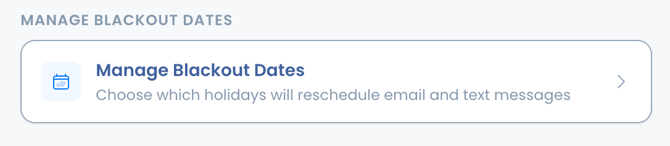
#### **1. Navigate to Dashboard \> Account \> Manage Blackout Dates**
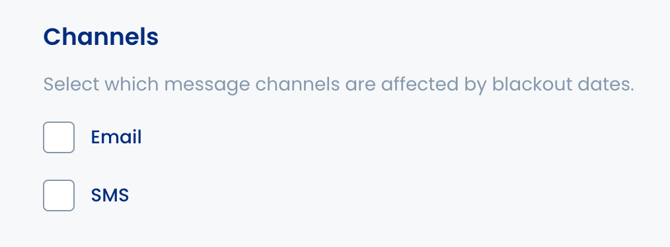
#### **2. Choose Message Channels**
Select whether you want the blackout dates to apply to email, SMS, or both.
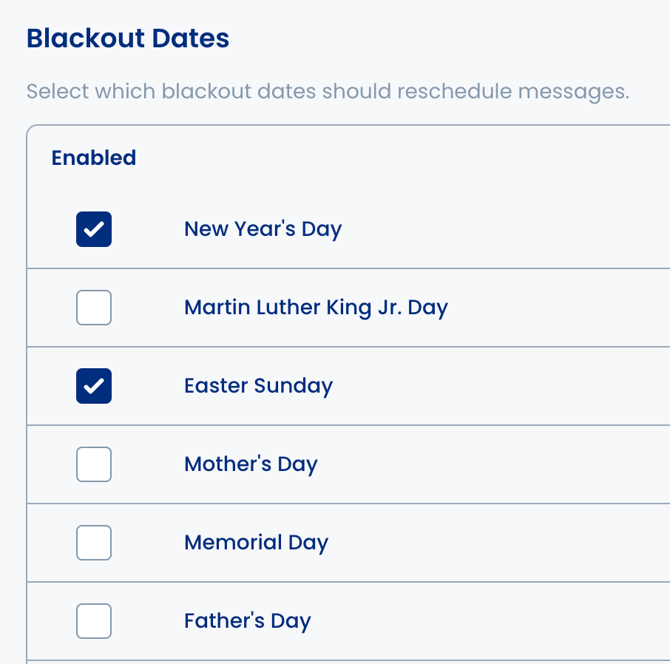
#### **3\. Select Predefined Blackout Dates**
A list of common holidays is available for quick selection. Simply check the box next to any holiday you would like to prevent messages from being sent.
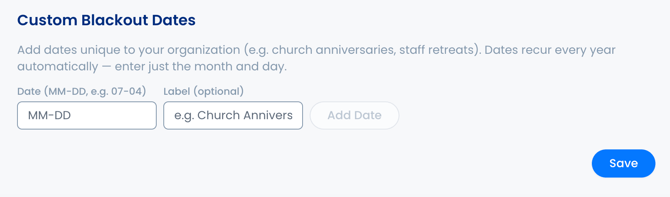
#### **4. Add Custom Blackout Dates**
You can also create your own recurring blackout dates.
- Enter the month, day, and optional label to identify the date.
- Select Add Date and Save.
- Custom blackout dates automatically recur every year.
#### **5. Save Your Changes**
After selecting your predefined holidays and adding any optional custom blackout dates, click **Save** to apply your changes. Your automated messages will now skip those dates and resume on the next available day.
### **How Blackout Dates Work**
When a scheduled message falls on a blackout date:
- The scheduled message will not be sent on the blackout date. This includes NurturePoint Journey messages and scheduled mass messages.
- It will automatically be rescheduled for the next available day.
- Since ads are still live, if a new person requests information, the first automated message will be sent at the next available date.
- No manual adjustments are required after your blackout dates have been configured.
- [VisitorReach Tools](https://connect.visitorreach.com/help/visitorreach-tools?hsLang=en#main-content)
- [Dashboard](https://connect.visitorreach.com/help/visitorreach-tools?hsLang=en#dashboard)
- [Journeys](https://connect.visitorreach.com/help/visitorreach-tools?hsLang=en#journeys)
- [Conversations](https://connect.visitorreach.com/help/visitorreach-tools?hsLang=en#conversations)
- [Group](https://connect.visitorreach.com/help/visitorreach-tools?hsLang=en#group)
- [Account](https://connect.visitorreach.com/help/visitorreach-tools?hsLang=en#account)
- [Marketing](https://connect.visitorreach.com/help/marketing?hsLang=en#main-content)
- [Social Media](https://connect.visitorreach.com/help/marketing?hsLang=en#social-media)
- [Digital Health](https://connect.visitorreach.com/help/marketing?hsLang=en#digital-health)
- [Website](https://connect.visitorreach.com/help/marketing?hsLang=en#website)
- [Coaching](https://connect.visitorreach.com/help/coaching?hsLang=en#main-content)
- [Role of the Church](https://connect.visitorreach.com/help/coaching?hsLang=en#role-of-the-church)
- [Outreach & Evangelism](https://connect.visitorreach.com/help/coaching?hsLang=en#outreach-evangelism)
- [Meaningful Conversations](https://connect.visitorreach.com/help/coaching?hsLang=en#meaningful-conversations)
- [VisitorTap](https://connect.visitorreach.com/help/visitortap?hsLang=en#main-content)
- [VisitorTap 101](https://connect.visitorreach.com/help/visitortap?hsLang=en#visitortap-101)
- [Taptree](https://connect.visitorreach.com/help/visitortap?hsLang=en#taptree)
- [Placement & Best Practices](https://connect.visitorreach.com/help/visitortap?hsLang=en#placement-best-practices)
- [Managing Your Dashboard Features](https://connect.visitorreach.com/help/visitortap?hsLang=en#managing-your-dashboard-features)
- [Troubleshooting - VisitorTap Help Center](https://connect.visitorreach.com/help/visitortap?hsLang=en#troubleshooting-visitortap-help-center)
- [FAQs](https://connect.visitorreach.com/help/faqs?hsLang=en)
- [Training](https://connect.visitorreach.com/help/training?hsLang=en)
[](https://connect.visitorreach.com/help?hsLang=en)
[mailto:support@visitorreach.com](mailto:support@visitorreach.com)
Copyright © 2024, VisitorReach