---
title: Digital Health Overview
description: The Digital Health Tool keeps your church’s information synchronized across 40+ online platforms.
---
[Skip to content](https://connect.visitorreach.com/help/digital-health-overview#main-content)
English
Show submenu for translations
[](https://dashboard.visitorreach.com/)
Open main navigation
Close main navigation
- English
Show submenu for translations
How can we help you?
- There are no suggestions because the search field is empty.
1. [Knowledge Base](https://connect.visitorreach.com/help?hsLang=en)
2. [Marketing](https://connect.visitorreach.com/help/marketing?hsLang=en)
3. [Digital Health](https://connect.visitorreach.com/help/marketing?hsLang=en#digital-health)
# Digital Health Overview
## The Digital Health Tool keeps your church’s information synchronized across 50+ online platforms. This is known as local listing management—the process of creating, updating, and maintaining accurate church information across online directories to improve local search rankings, maps visibility, and voice search results. VisitorReach clients can view their Digital Health Report directly inside their Dashboard. This article explains each section of the report and the key terms used.
****
### **Executive Report**
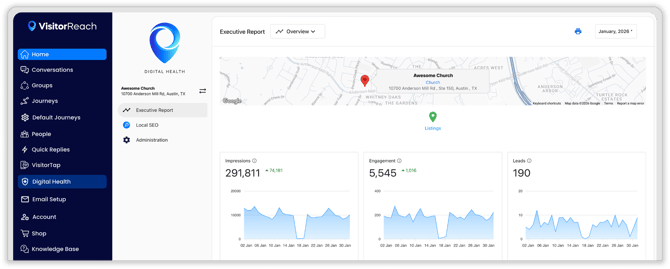
Your Executive Report provides key insights into how people are discovering and interacting with your church online.
#### **Impressions**
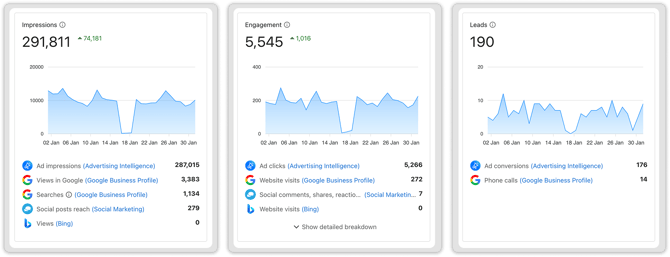
Impressions represent the number of times your church has been viewed or searched for on Google. These are reported as the total number of impressions, not unique impressions. For example, if one person sees a listing three different times, it will count as three impressions.
#### **Engagements**
Engagements measure the number of interactions with your website that come from people searching for your church through a search engine. These metrics generally reflect the total number of interactions (clicks, website visits, or other actions). For example, if one person clicks twice, both clicks are counted.
#### **Leads**
Leads reflect the number of people who attempted to call the phone number listed on your Google Business Profile or complete a form, web chat, or other lead sources. The metrics represent the total number of leads captured, not necessarily unique leads.
### **Listing Status Definitions**
Digital Health uses status indicators to show how well your church listings match across platforms.
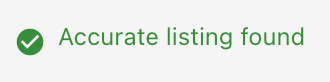
#### **“Accurate Listing Found”**
This means the information we have for your church matches what is listed on the corresponding business platform.
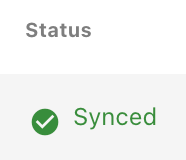
#### **“Status: Synced”**
A “synced” status indicates your profile is accurately synchronized with the corresponding business listing.
#### **“Found With Possible Errors”**
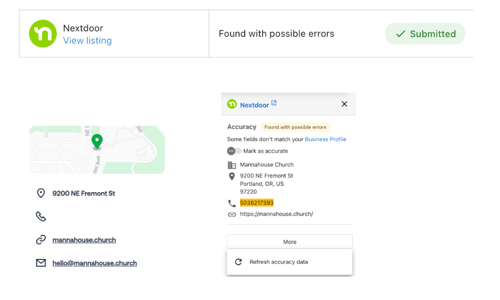
This message typically appears when certain listing platforms have different character limits or formatting requirements. For example, some platforms may not accept a Google Business Profile description if it exceeds their allowed length.
You can also select “View Listing” in order to ensure there is no data missing (such as a phone number), add details if needed, and refresh accuracy data.
### ****
#### **“Not Found”**
A “not found” message means there is currently no listing available for your church on that platform. If the status shows “Submitted,” the listing is in the process of being created and published.
#### **“Reporting Not Available for This Source”**
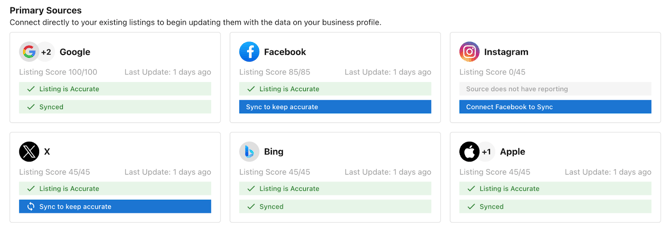
This usually means the listing source is not applicable for your church’s business category. Typically, no action is necessary. This is a technical limitation of the third-party directory's infrastructure and does not indicate an error with your business information. In most cases, your listing is live, and we have sent your data, but they do not provide a technical way for us to pull confirmation or traffic data back into your dashboard.

If reporting should be available:
1. Go to the Local SEO tab
2. Select “Listing Sync”
3. Navigate to “Primary Sources”
4. Sync the appropriate listings accordingly
### **Local SEO**
The Local SEO section helps you understand how your church ranks in search results and how people find you online.
#### **Keywords**
Keywords are specific words, phrases, or geographic identifiers that people may type into a search engine when looking for a church.
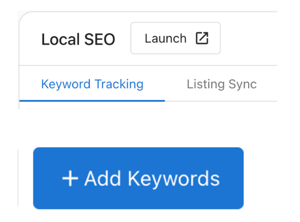
Choose up to 15 keywords. Examples include:
- “Church near me”
- “Christian church in Dallas”
- “Christian church near me”
### **Can I Change the Search Keywords for My Church?**
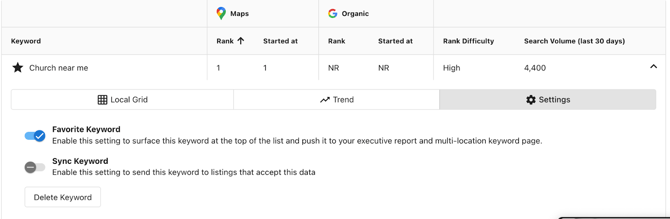
Yes. To manage keywords:
1. Go to “Keyword Tracking”
2. Select the keyword you want to update
3. Click “Settings” to edit or remove it
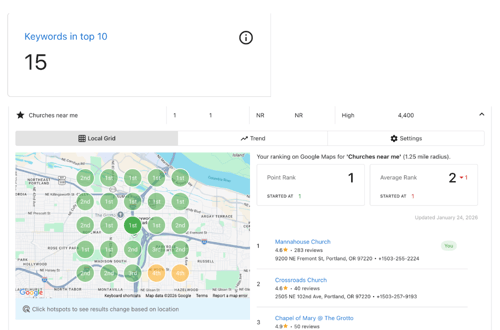
### **Keywords in Top 10**
This refers to search terms where your church website or Google Business Profile appears on the first page of Google search results in a specific geographic area.
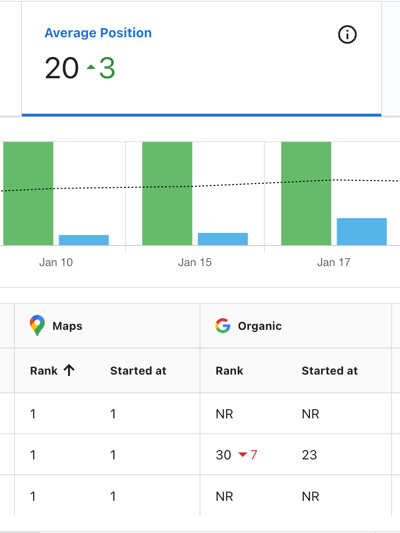
### **Average Position**
Average Position represents the overall ranking placement of your church across both Google Maps results and organic search results:
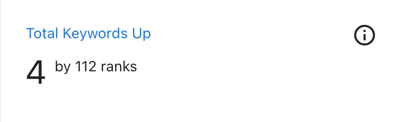
### **Total Keywords Up**
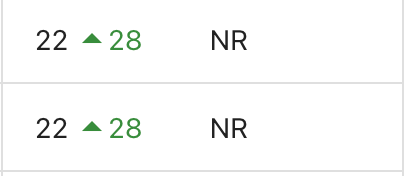
This indicates how many keyword rankings your church has improved over time.
### **Search Types**
- Maps - A search performed directly through Google Maps.
- Organic - A general search performed through Google Search (search engine/non-map results).

### **Administration Settings**
The Administration section allows you to manage your Digital Health account and Google business information.
### **Business Profile**
Use this section to directly update your church’s Google Business Profile information. No need to login to your business account as it’s linked here.

### **Integrations**
Integrations allow you to sync your data with additional platforms, connect external accounts, and remove the need for manual data entry.
#### **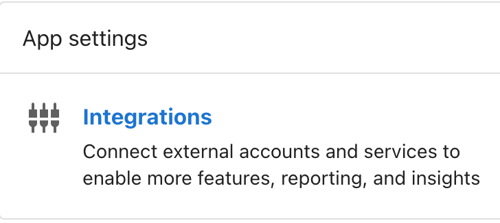**
**Note:** The integration for Facebook here is not related to Meta Business access that you have provided VisitorReach. Most of the platforms here would not be related to a church.
### **Delete Account**
This option permanently deletes your account from Digital Health Tool and corresponding benefits of local listing management. By doing this a church will experience a dip in rankings.
### **Need Help?**
Visit **[Digital Health FAQ's](https://connect.visitorreach.com/help/digital-health-faq?hsLang=en)** for answers to common questions, or reach out to[support@visitorreach.com](mailto:support@visitorreach.com) for guidance.
- [VisitorReach Tools](https://connect.visitorreach.com/help/visitorreach-tools?hsLang=en#main-content)
- [Dashboard](https://connect.visitorreach.com/help/visitorreach-tools?hsLang=en#dashboard)
- [Journeys](https://connect.visitorreach.com/help/visitorreach-tools?hsLang=en#journeys)
- [Conversations](https://connect.visitorreach.com/help/visitorreach-tools?hsLang=en#conversations)
- [Group](https://connect.visitorreach.com/help/visitorreach-tools?hsLang=en#group)
- [Account](https://connect.visitorreach.com/help/visitorreach-tools?hsLang=en#account)
- [Marketing](https://connect.visitorreach.com/help/marketing?hsLang=en#main-content)
- [Social Media](https://connect.visitorreach.com/help/marketing?hsLang=en#social-media)
- [Digital Health](https://connect.visitorreach.com/help/marketing?hsLang=en#digital-health)
- [Website](https://connect.visitorreach.com/help/marketing?hsLang=en#website)
- [Coaching](https://connect.visitorreach.com/help/coaching?hsLang=en#main-content)
- [Role of the Church](https://connect.visitorreach.com/help/coaching?hsLang=en#role-of-the-church)
- [Outreach & Evangelism](https://connect.visitorreach.com/help/coaching?hsLang=en#outreach-evangelism)
- [Meaningful Conversations](https://connect.visitorreach.com/help/coaching?hsLang=en#meaningful-conversations)
- [VisitorTap](https://connect.visitorreach.com/help/visitortap?hsLang=en#main-content)
- [VisitorTap 101](https://connect.visitorreach.com/help/visitortap?hsLang=en#visitortap-101)
- [Taptree](https://connect.visitorreach.com/help/visitortap?hsLang=en#taptree)
- [Placement & Best Practices](https://connect.visitorreach.com/help/visitortap?hsLang=en#placement-best-practices)
- [Managing Your Dashboard Features](https://connect.visitorreach.com/help/visitortap?hsLang=en#managing-your-dashboard-features)
- [Troubleshooting - VisitorTap Help Center](https://connect.visitorreach.com/help/visitortap?hsLang=en#troubleshooting-visitortap-help-center)
- [FAQs](https://connect.visitorreach.com/help/faqs?hsLang=en)
- [Training](https://connect.visitorreach.com/help/training?hsLang=en)
[](https://connect.visitorreach.com/help?hsLang=en)
[mailto:support@visitorreach.com](mailto:support@visitorreach.com)
Copyright © 2024, VisitorReach