
How to Upload a CSV to Multiple Group
1. Navigate to Dashboard > Groups > Multi-Group CSV

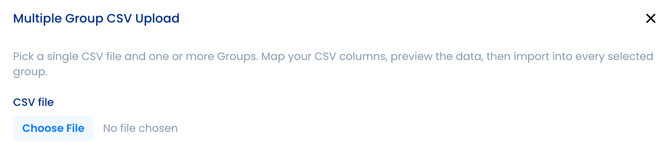
2. Choose File
Select the CSV file from your computer that you would like to upload.
Tip: Ensure your CSV is properly formatted and contains the information you want to import before proceeding.
3. Map Your CSV Columns
Map each column from your CSV to the corresponding fields in the platform. This ensures your contact information is imported correctly.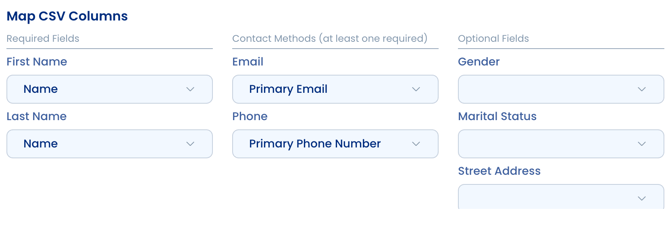
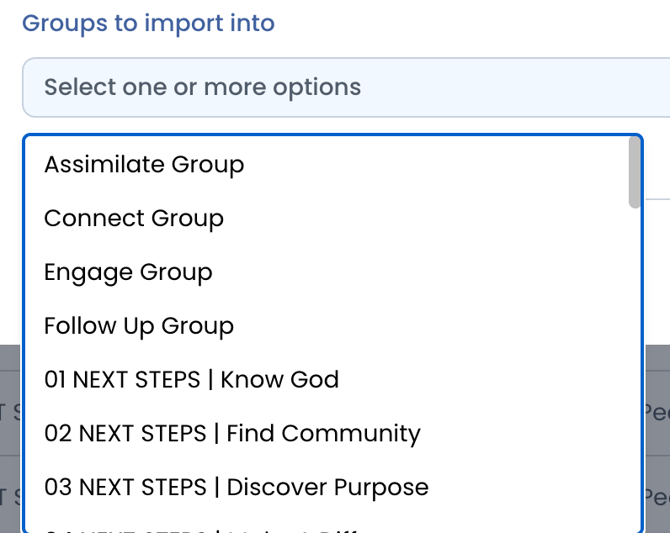
4. Select Your Groups
Choose all of the Groups you would like the contacts to be added to. You can select multiple Groups during this step.
5. Import the CSV
Once you've confirmed your column mappings and selected your Groups, click Import into Groups to begin the upload.
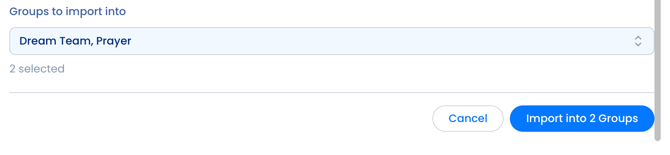
The system will only add each person to groups they're not already in — if someone is already in one selected group, they'll still be added to any others where they don't exist yet.
6. Wait for the Import to Complete
The import may take a few minutes depending on the size of your CSV. Do not close or refresh the page while the import is processing. Once the status displays Done, your contacts have been successfully added to the selected Groups.
Troubleshooting
- Verify your CSV is formatted correctly before importing.
- Ensure the required fields have a selection in Map CSV Columns.
- If the import takes longer than expected, allow it to finish before navigating away from the page.
- If you encounter any errors during the upload, review your CSV formatting and try again, or contact support@visitorreach.com for assistance.