---
title: Manage Users
description: The Manage Users page allows you to invite team members and manage who has access to your VisitorReach account.
---
[Skip to content](https://connect.visitorreach.com/help/manage-users#main-content)
English
Show submenu for translations
[](https://dashboard.visitorreach.com/)
Open main navigation
Close main navigation
- English
Show submenu for translations
How can we help you?
- There are no suggestions because the search field is empty.
1. [Knowledge Base](https://connect.visitorreach.com/help?hsLang=en)
2. [VisitorReach Tools](https://connect.visitorreach.com/help/visitorreach-tools?hsLang=en)
3. [Account](https://connect.visitorreach.com/help/visitorreach-tools?hsLang=en#account)
# Manage Users
## The Manage Users page allows you to invite team members and manage who has access to your VisitorReach account.
### **Access Manage Users**
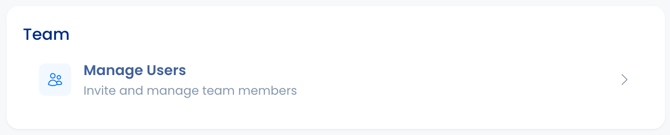
1. From the Dashboard, **click Account.**
2. Under Team, select Manage Users.
### **Invite a User**
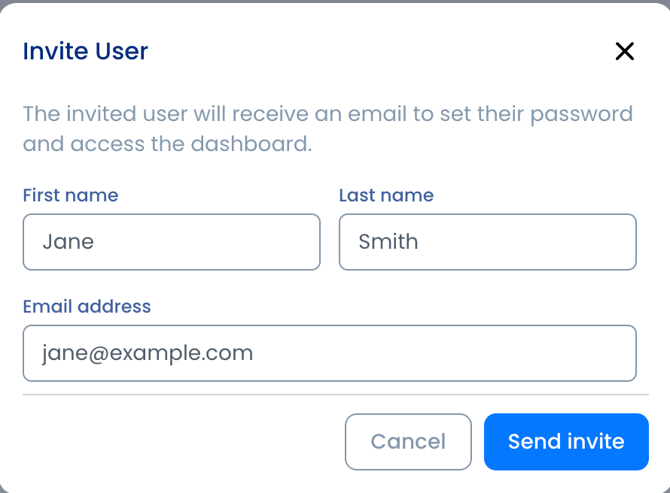
To add a new team member:
1. Click **Invite User**.
2. Enter the user's:
3. Click **Send Invite** to send the invitation.
The invited user will receive an email from **support@visitorreach.com** to set up their account.
### **Manage Existing Users**
From the Manage Users page, you can manage current team members by selecting the appropriate option next to their name.
Available actions include:
- **Edit** – Update the user's information.
- **Resend Invite** – Send a new invitation email if the original invite was missed or expired.
- **Delete** – Remove the user's access to your account.
### **User Seat Limits**
Each VisitorReach subscription plan includes a specific number of user seats.
If you've reached your user limit and need to add more team members, please contact [support@visitorreach.com](mailto:support@visitorreach.com) to discuss upgrading your plan or to answer any questions.
- [VisitorReach Tools](https://connect.visitorreach.com/help/visitorreach-tools?hsLang=en#main-content)
- [Dashboard](https://connect.visitorreach.com/help/visitorreach-tools?hsLang=en#dashboard)
- [Journeys](https://connect.visitorreach.com/help/visitorreach-tools?hsLang=en#journeys)
- [Conversations](https://connect.visitorreach.com/help/visitorreach-tools?hsLang=en#conversations)
- [Group](https://connect.visitorreach.com/help/visitorreach-tools?hsLang=en#group)
- [Account](https://connect.visitorreach.com/help/visitorreach-tools?hsLang=en#account)
- [Marketing](https://connect.visitorreach.com/help/marketing?hsLang=en#main-content)
- [Social Media](https://connect.visitorreach.com/help/marketing?hsLang=en#social-media)
- [Digital Health](https://connect.visitorreach.com/help/marketing?hsLang=en#digital-health)
- [Website](https://connect.visitorreach.com/help/marketing?hsLang=en#website)
- [Coaching](https://connect.visitorreach.com/help/coaching?hsLang=en#main-content)
- [Role of the Church](https://connect.visitorreach.com/help/coaching?hsLang=en#role-of-the-church)
- [Outreach & Evangelism](https://connect.visitorreach.com/help/coaching?hsLang=en#outreach-evangelism)
- [Meaningful Conversations](https://connect.visitorreach.com/help/coaching?hsLang=en#meaningful-conversations)
- [VisitorTap](https://connect.visitorreach.com/help/visitortap?hsLang=en#main-content)
- [VisitorTap 101](https://connect.visitorreach.com/help/visitortap?hsLang=en#visitortap-101)
- [Taptree](https://connect.visitorreach.com/help/visitortap?hsLang=en#taptree)
- [Placement & Best Practices](https://connect.visitorreach.com/help/visitortap?hsLang=en#placement-best-practices)
- [Managing Your Dashboard Features](https://connect.visitorreach.com/help/visitortap?hsLang=en#managing-your-dashboard-features)
- [Troubleshooting - VisitorTap Help Center](https://connect.visitorreach.com/help/visitortap?hsLang=en#troubleshooting-visitortap-help-center)
- [FAQs](https://connect.visitorreach.com/help/faqs?hsLang=en)
- [Training](https://connect.visitorreach.com/help/training?hsLang=en)
[](https://connect.visitorreach.com/help?hsLang=en)
[mailto:support@visitorreach.com](mailto:support@visitorreach.com)
Copyright © 2024, VisitorReach