
How to Connect Planning Center
Follow these steps to set up the integration:
1. Go to your Dashboard: dashboard.visitorreach.com
2. Navigate to: Account → Manage Integrations
3. Select Connect Your PCO Account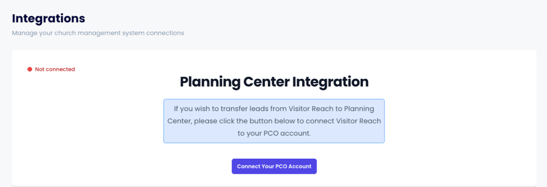
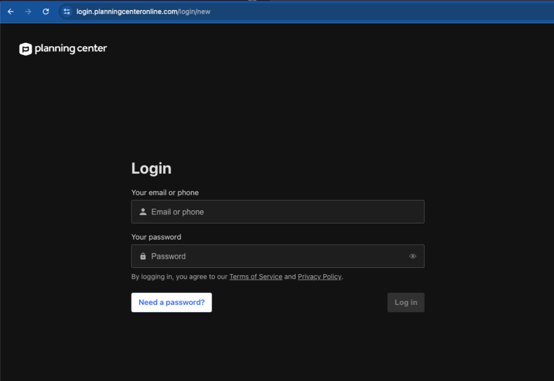
4. Enter your Planning Center Login credentials > Log in
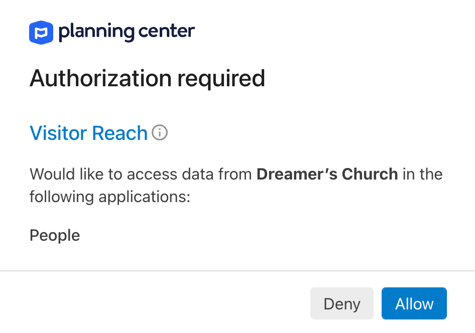
5. Click Allow for Authorization required
Configure Journey Sync
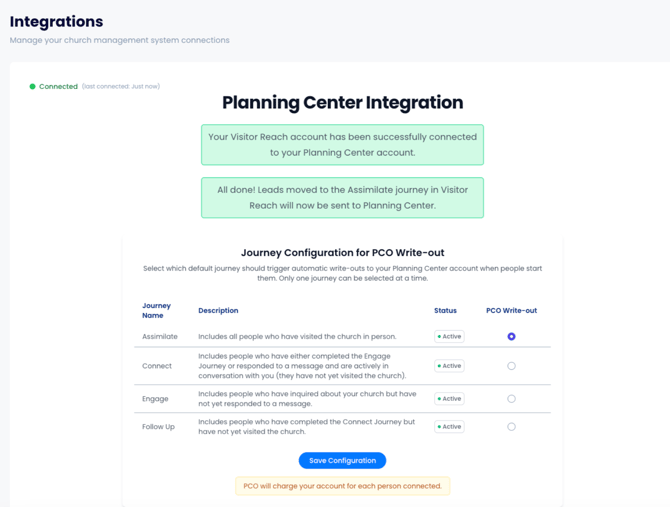
After connecting, you’ll choose which Journey will trigger the integration:
- Select a specific Journey (recommended: Assimilate)
- When a person is added to this Journey, they will automatically be written into your PCO account
What This Means
Once your integration is set up:
- Any contact added to the selected Journey will sync to Planning Center
- No manual data entry is required
- Your follow-up process stays consistent across both platforms
Tips
- We recommend using the Assimilate Journey for most churches since this would include people who have visited your church and would likely be best to add to your database.
- Make sure your Planning Center credentials are active and correct before connecting the integration.
- If there is ever an issue, select Disconnect Your PCO Account and reconnect account.