

How Schedules Work
A Schedule connects a Tap product to different destinations that are set up as Categories during specific time windows. Outside of those defined time windows, a Default destination can be set to ensure there are no gaps in routing.
This feature gives you the ability to:
- Assign different destinations by day and time.
- Create multiple events within one schedule.
- Set a fallback (Default) destination.
- Easily view and adjust schedules using Visual Builder.
Managing Schedules
There are two primary ways to manage Schedules:
Option 1: Visual Builder
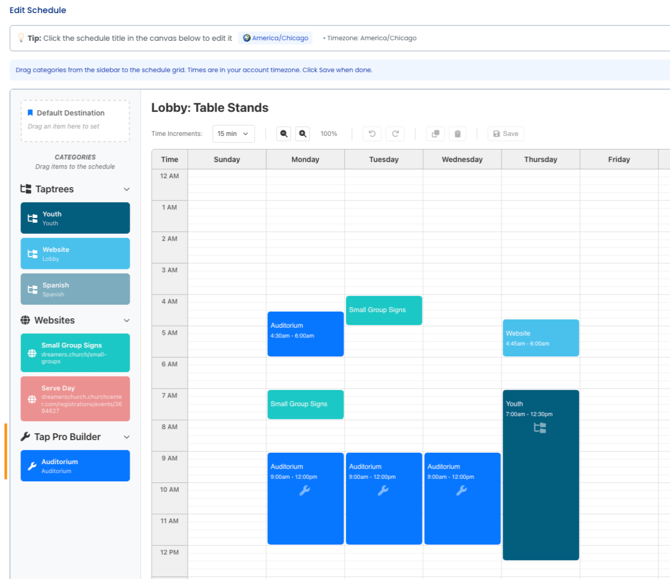
Visual Builder provides a visual, drag-and-drop interface for managing your schedule. In this interface you can:
- View your full schedule layout by day and time.
- Drag and drop Tap destinations into specific time slots.
- Edit existing time blocks quickly.
- Adjust by day and time increments.
- Set a Default destination for any time window not covered by scheduled events.
When to Use Visual Builder
Visual Builder is best for:
- Quickly adjusting time slots.
- Seeing your weekly schedule at a glance.
- Moving destinations between days or times.
- Making real-time edits.
Option 2: Create (Form)
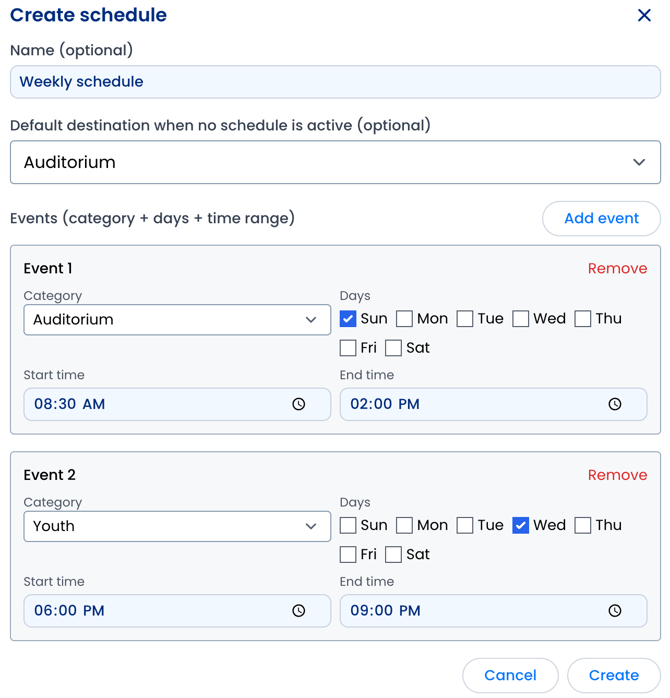
The Create (Form) view allows you to build a structured schedule from scratch.
Step 1: Create a New Schedule
- Set a Title for your schedule: Use a clear, descriptive name so your internal team understands its purpose (e.g., “Sunday Auditorium” or “Youth Night”).
- Choose a Default destination: This destination will be used whenever no scheduled event is active.
Step 2: Add Events
Under Events, you can define specific time-based rules.
For each event, you can:
- Select the Category
- Choose the day(s) the event applies to
- Set the Start and End Time
You can create multiple events within a single schedule to set up different activities, services, or experiences throughout the week.
Assigning Schedule to Tap Products
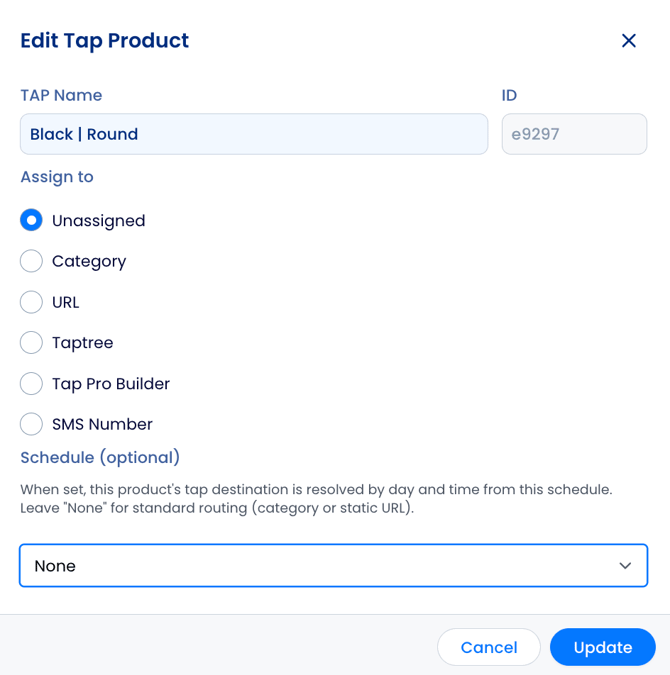
Under Tap Product, select a VisitorTap product. At the bottom, the Schedule (optional) default is set to None.
Select the drop-down arrow to see all available Schedules to assign and select the desired Schedule.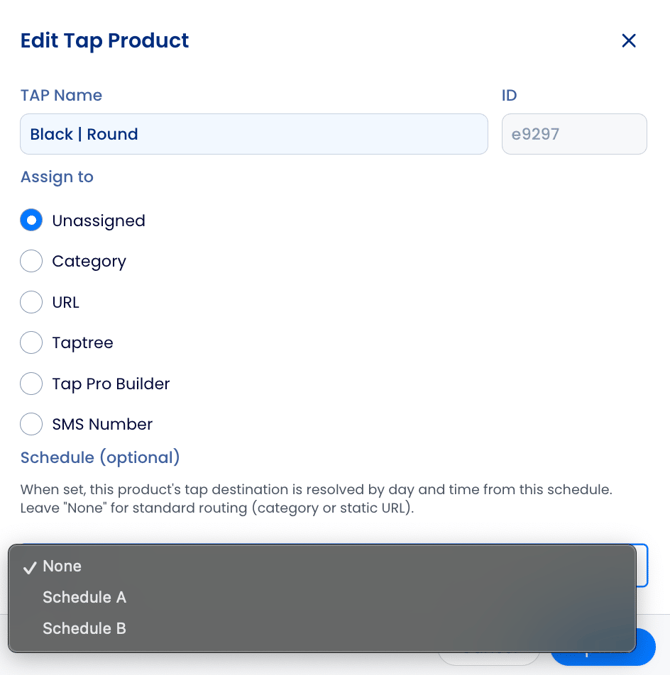
After selecting the Schedule, select Update, and save this change.
Best Practices
- Double check scheduled days and times are accurate prior to saving.
- Always set a Default destination to avoid unintended routing gaps.
- Create a Category for any link or Taptree to be able to add to your Schedule.
- Schedule Tap products for main events, like Sundays services, with plenty of buffer time, such as 30 minutes before and after service to avoid any gaps.
- Troubleshoot the system by testing the Schedules feature before your first event and ensure that all Tap products are scheduled and routing to the correct links at their designated days/times.
Need Help?
VisitorTap FAQ | Contact Us