---
title: Schedules for Tap Products
description: Schedules allow you to automatically route Tap products to specific destinations based on the day and time.
---
[Skip to content](https://connect.visitorreach.com/help/schedules-for-tap-products#main-content)
English
Show submenu for translations
[](https://dashboard.visitorreach.com/)
Open main navigation
Close main navigation
- English
Show submenu for translations
How can we help you?
- There are no suggestions because the search field is empty.
1. [Knowledge Base](https://connect.visitorreach.com/help?hsLang=en)
2. [VisitorTap](https://connect.visitorreach.com/help/visitortap?hsLang=en)
3. [Managing Your Dashboard Features](https://connect.visitorreach.com/help/visitortap?hsLang=en#managing-your-dashboard-features)
# Schedules for Tap Products
## Schedules allow you to automatically route Tap products to specific destinations based on the day and time. This ensures the right content and experience are delivered exactly when needed.

### **How Schedules Work**
A Schedule connects a Tap product to different destinations that are set up as Categories during specific time windows. Outside of those defined time windows, a **Default** destination can be set to ensure there are no gaps in routing.
This feature gives you the ability to:
- Assign different destinations by day and time.
- Create multiple events within one schedule.
- Set a fallback (**Default**) destination.
- Easily view and adjust schedules using Visual Builder.
### **Managing Schedules**
There are two primary ways to manage Schedules:
#### **Option 1: Visual Builder**
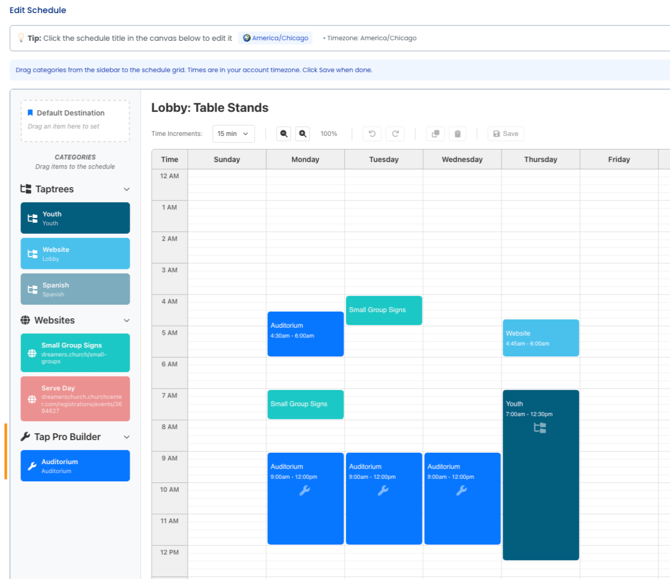
Visual Builder provides a visual, drag-and-drop interface for managing your schedule. In this interface you can:
- View your full schedule layout by day and time.
- Drag and drop Tap destinations into specific time slots.
- Edit existing time blocks quickly.
- Adjust by day and time increments.
- Set a Default destination for any time window not covered by scheduled events.
### **When to Use Visual Builder**
Visual Builder is best for:
- Quickly adjusting time slots.
- Seeing your weekly schedule at a glance.
- Moving destinations between days or times.
- Making real-time edits.
### **Option 2: Create (Form)**
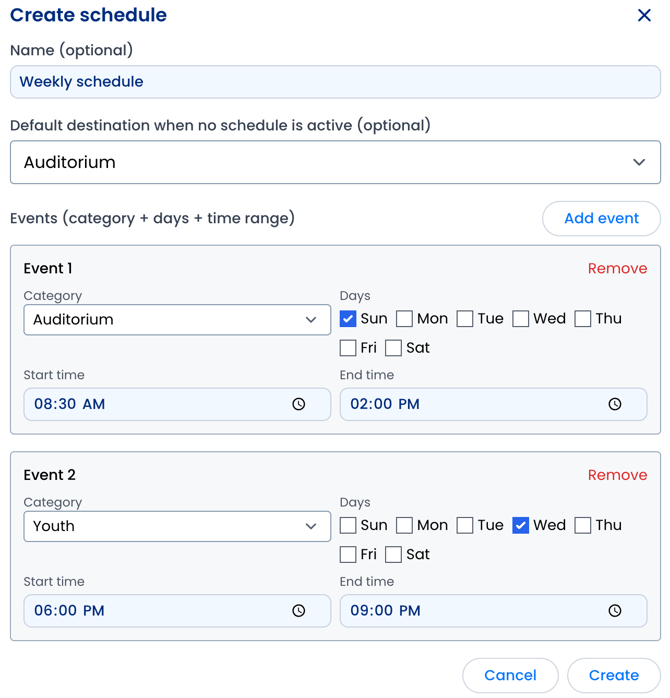
The Create (Form) view allows you to build a structured schedule from scratch.
#### **Step 1: Create a New Schedule**
- **Set a Title for your schedule:** Use a clear, descriptive name so your internal team understands its purpose (e.g., “Sunday Auditorium” or “Youth Night”).
- **Choose a Default destination:** This destination will be used whenever no scheduled event is active.
#### **Step 2: Add Events**
Under Events, you can define specific time-based rules.
For each event, you can:
- Select the Category
- Choose the day(s) the event applies to
- Set the Start and End Time
You can create multiple events within a single schedule to set up different activities, services, or experiences throughout the week.
### 
### **Assigning Schedule to Tap Products**
Under Tap Product, select a VisitorTap product. At the bottom, the Schedule (optional) default is set to None.
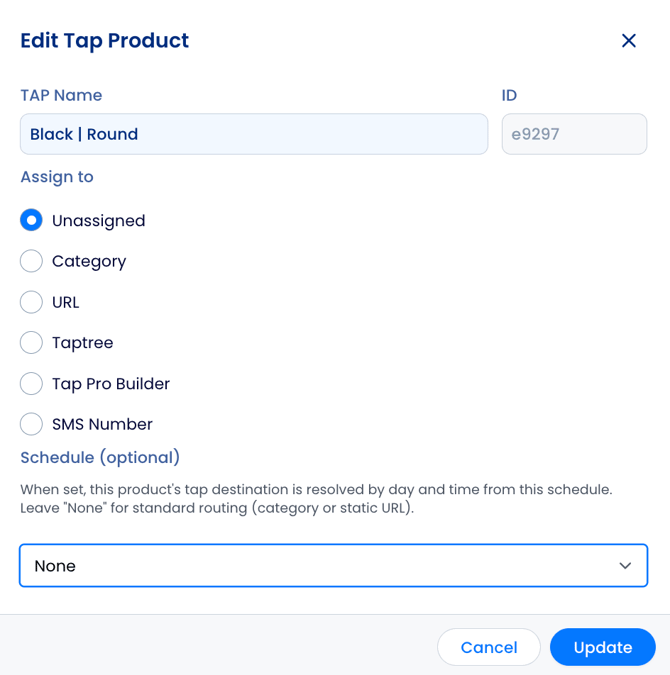
Select the drop-down arrow to see all available Schedules to assign and select the desired Schedule.
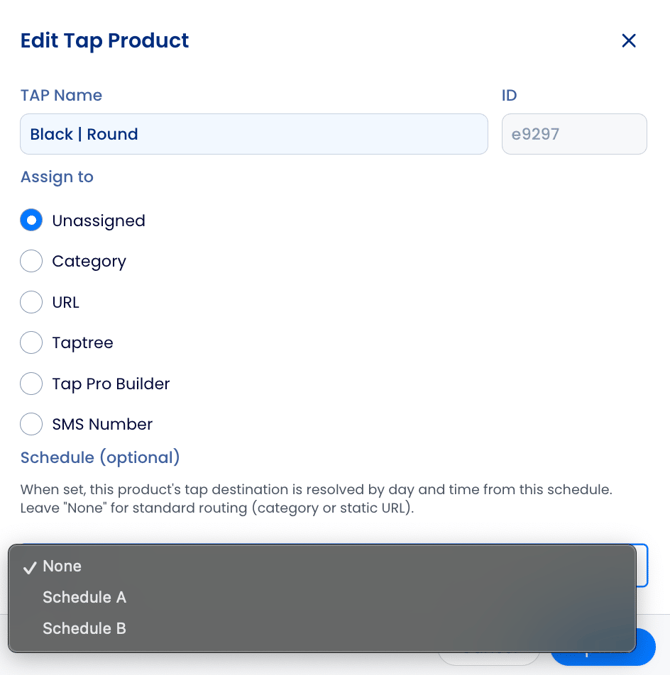
After selecting the Schedule, select Update, and save this change.
### **Best Practices**
- Double check scheduled days and times are accurate prior to saving.
- Always set a Default destination to avoid unintended routing gaps.
- Create a Category for any link or Taptree to be able to add to your Schedule.
- Schedule Tap products for main events, like Sundays services, with plenty of buffer time, such as 30 minutes before and after service to avoid any gaps.
- Troubleshoot the system by testing the Schedules feature before your first event and ensure that all Tap products are scheduled and routing to the correct links at their designated days/times.
---
### **Need Help?**
[VisitorTap FAQ](https://connect.visitorreach.com/help/visitortap-faq?hsLang=en) | Contact Us
- [VisitorReach Tools](https://connect.visitorreach.com/help/visitorreach-tools?hsLang=en#main-content)
- [Dashboard](https://connect.visitorreach.com/help/visitorreach-tools?hsLang=en#dashboard)
- [Journeys](https://connect.visitorreach.com/help/visitorreach-tools?hsLang=en#journeys)
- [Conversations](https://connect.visitorreach.com/help/visitorreach-tools?hsLang=en#conversations)
- [Group](https://connect.visitorreach.com/help/visitorreach-tools?hsLang=en#group)
- [Account](https://connect.visitorreach.com/help/visitorreach-tools?hsLang=en#account)
- [Marketing](https://connect.visitorreach.com/help/marketing?hsLang=en#main-content)
- [Social Media](https://connect.visitorreach.com/help/marketing?hsLang=en#social-media)
- [Digital Health](https://connect.visitorreach.com/help/marketing?hsLang=en#digital-health)
- [Website](https://connect.visitorreach.com/help/marketing?hsLang=en#website)
- [Coaching](https://connect.visitorreach.com/help/coaching?hsLang=en#main-content)
- [Role of the Church](https://connect.visitorreach.com/help/coaching?hsLang=en#role-of-the-church)
- [Outreach & Evangelism](https://connect.visitorreach.com/help/coaching?hsLang=en#outreach-evangelism)
- [Meaningful Conversations](https://connect.visitorreach.com/help/coaching?hsLang=en#meaningful-conversations)
- [VisitorTap](https://connect.visitorreach.com/help/visitortap?hsLang=en#main-content)
- [VisitorTap 101](https://connect.visitorreach.com/help/visitortap?hsLang=en#visitortap-101)
- [Taptree](https://connect.visitorreach.com/help/visitortap?hsLang=en#taptree)
- [Placement & Best Practices](https://connect.visitorreach.com/help/visitortap?hsLang=en#placement-best-practices)
- [Managing Your Dashboard Features](https://connect.visitorreach.com/help/visitortap?hsLang=en#managing-your-dashboard-features)
- [Troubleshooting - VisitorTap Help Center](https://connect.visitorreach.com/help/visitortap?hsLang=en#troubleshooting-visitortap-help-center)
- [FAQs](https://connect.visitorreach.com/help/faqs?hsLang=en)
- [Training](https://connect.visitorreach.com/help/training?hsLang=en)
[](https://connect.visitorreach.com/help?hsLang=en)
[mailto:support@visitorreach.com](mailto:support@visitorreach.com)
Copyright © 2024, VisitorReach