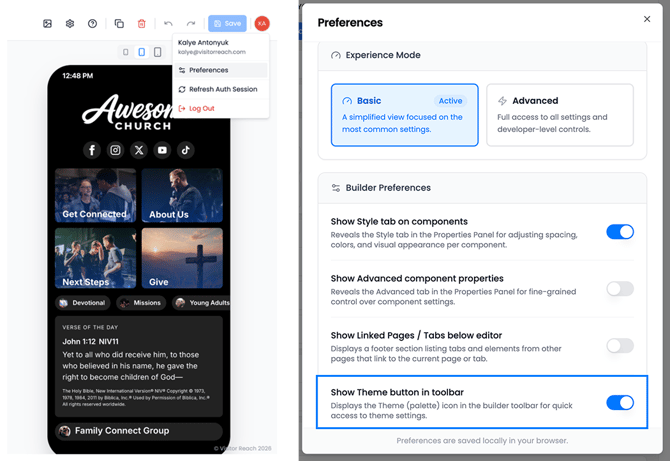
Step 1: Change your theme settings
- Navigate to user settings
- Click preferences
- Turn on Show Theme button in toolbar
- Close tab and press save
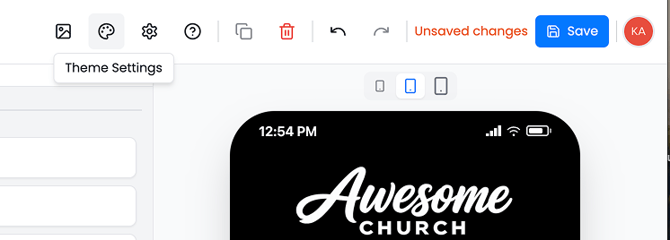
- Your theme settings will now be available in your tool bar.
Step 2: Change Colors, Fonts, Build Style and Component Styles
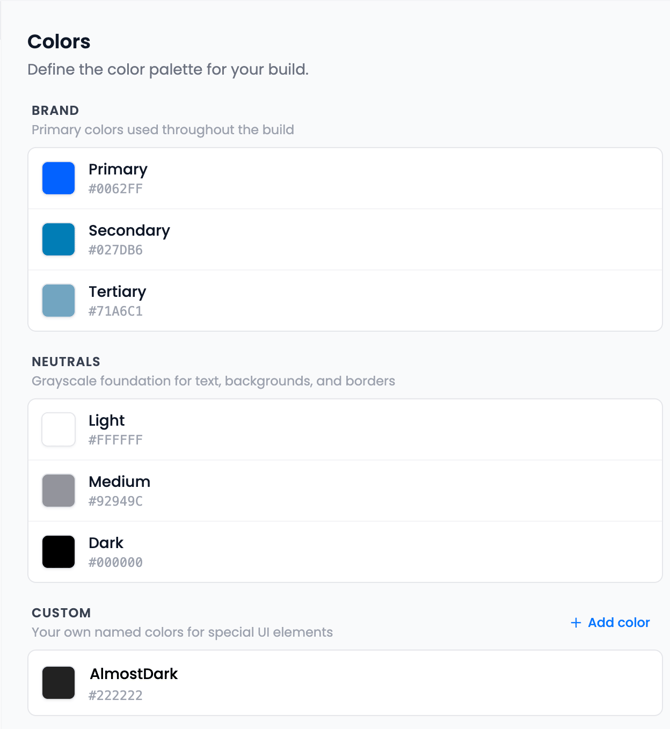
Colors: Define the color pallet for your build
This section controls the colors used across your build. Setting these correctly helps create a consistent, recognizable look.
- Brand Colors
These are your main colors used throughout the build:- Primary – Your main brand color (buttons, links, key actions)
- Secondary – A supporting color for accents and highlights
- Tertiary – An additional color for subtle variation
- Neutrals
These are used for structure and readability:- Light – Backgrounds and white space
- Medium – Secondary text, borders, and icons
- Dark – Primary text and strong contrast elements
- Custom Colors
Add any additional colors for specific elements (for example, special sections or unique UI components).
How to update colors:
Click on any color and enter a new HEX value to update it. Changes will apply across your build automatically.
Fonts: Define the typography for your build
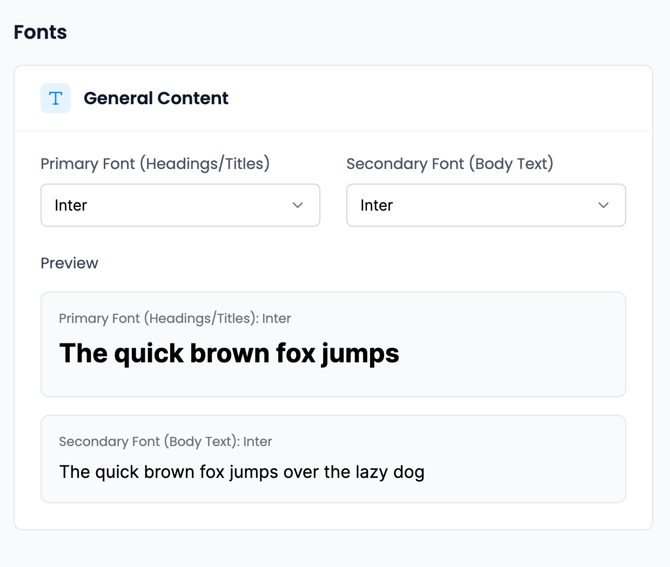
This section controls the fonts used across your build.
- Primary Font (Headings/Titles) – Used for headlines, section titles, and key messaging.
- Secondary Font (Body Text) – Used for paragraphs, descriptions, and longer text.
- Preview – Shows how your selected fonts will appear in both headings and body text, so you can quickly see how they work together.
How to update fonts:
Click the dropdown to select a different font for either headings or body text. Changes will apply across your build automatically.
Build Style: Define the layout and spacing of your build
This section controls the overall look, spacing, and readability of your pages.
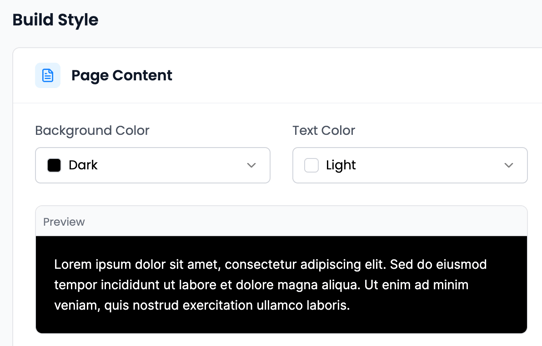
- Page Content
- Background Color – Sets the background color for your page content.
- Text Color – Sets the default text color that appears on top of the background.
- Preview – Shows how your selected background and text colors will look together.
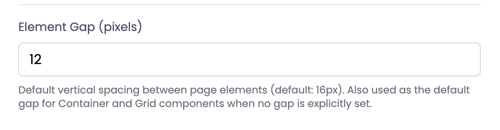
- Element Gap (pixels)
Controls the vertical spacing between elements on your page (such as text blocks, images, and sections).
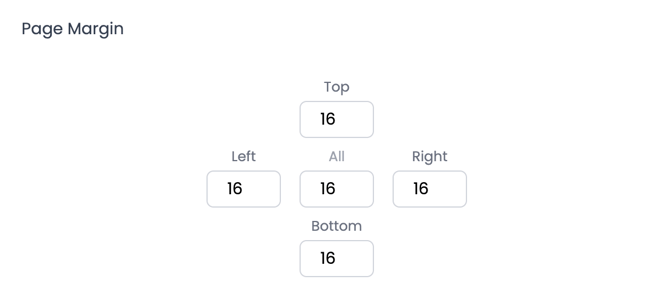
- Page Margin
Controls the space around the edges of your page content.- Top, Bottom, Left, Right – Adjust spacing for each side individually
- All – Apply the same margin to every side at once
How to update build style:
Use the dropdowns and input fields to adjust colors and spacing. Changes will apply across your build automatically.
Component Styles: Set default styles for your elements
This section controls the default look and feel of common elements across your build. Instead of styling each element individually, you can set global styles here to keep everything consistent.
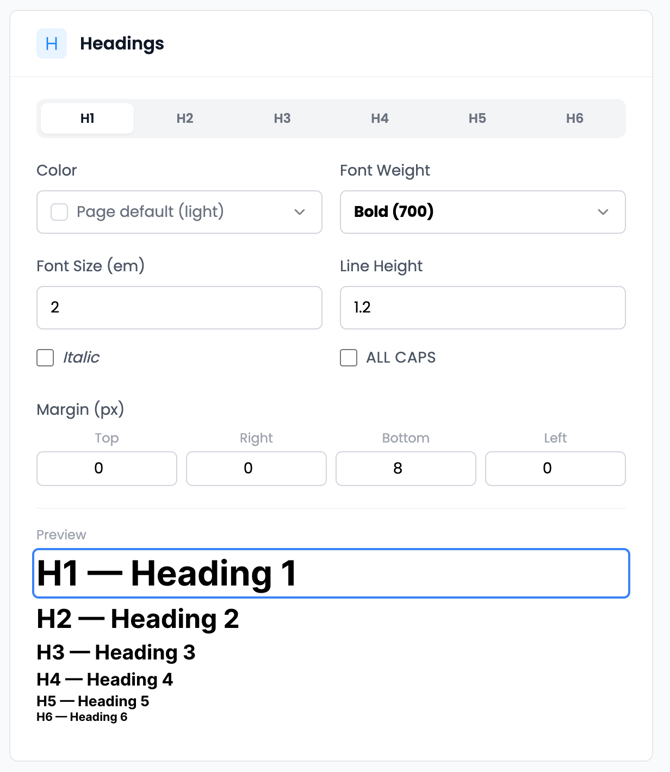
Headings
Controls how titles (H1–H6) appear across your pages.
- Set color, font weight, size, and line height
- Apply styles like italic or all caps
- Adjust spacing (margin) around headings
- Use the preview to see how each heading level will look
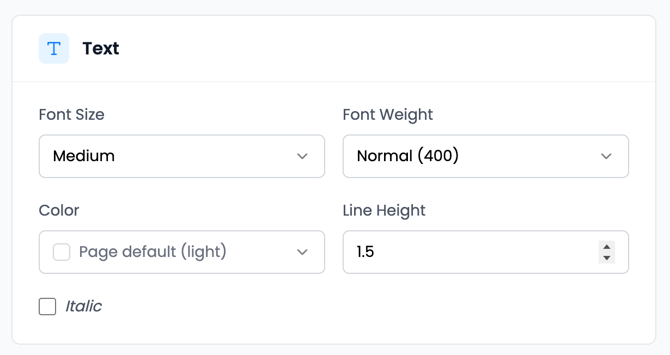
Text
Controls the default style for paragraph text.
- Set font size, weight, color, and line height
- Option to apply italic styling
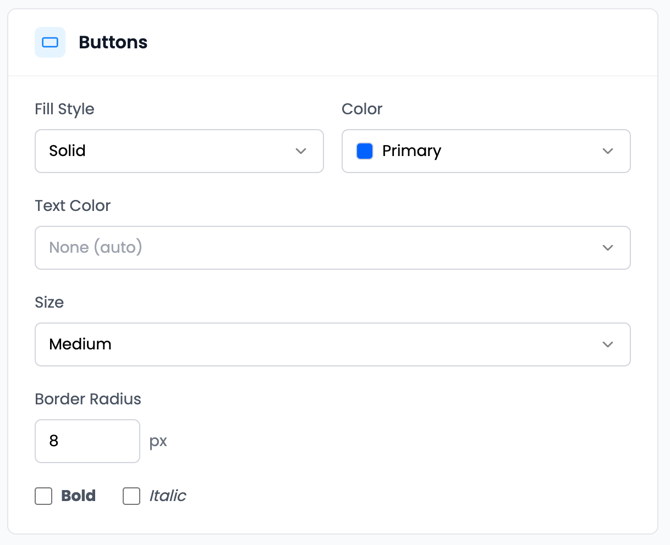
Buttons
Controls the appearance of buttons across your build.
- Fill Style – Solid, outline or clear
- Color – Uses your brand colors
- Text Color – Automatically adjusts or set manually
- Size – Controls padding and scale
- Border Radius – Adjust how rounded buttons appear
- Optional bold or italic text
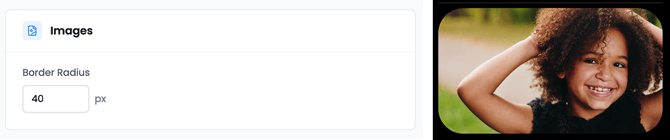
Images
Controls how images are displayed.
Border Radius – Adjust how rounded image corners appear
Cards
Controls the styling of card-based elements (containers for grouped content).
- Background Color & Shadow – Define the card look
- Border settings – Color and thickness
- Border Radius – Rounded corners
- Padding – Space inside the card (content and title areas)
- Typography – Set title and subtitle styles
- Spacing – Control space between titles and content
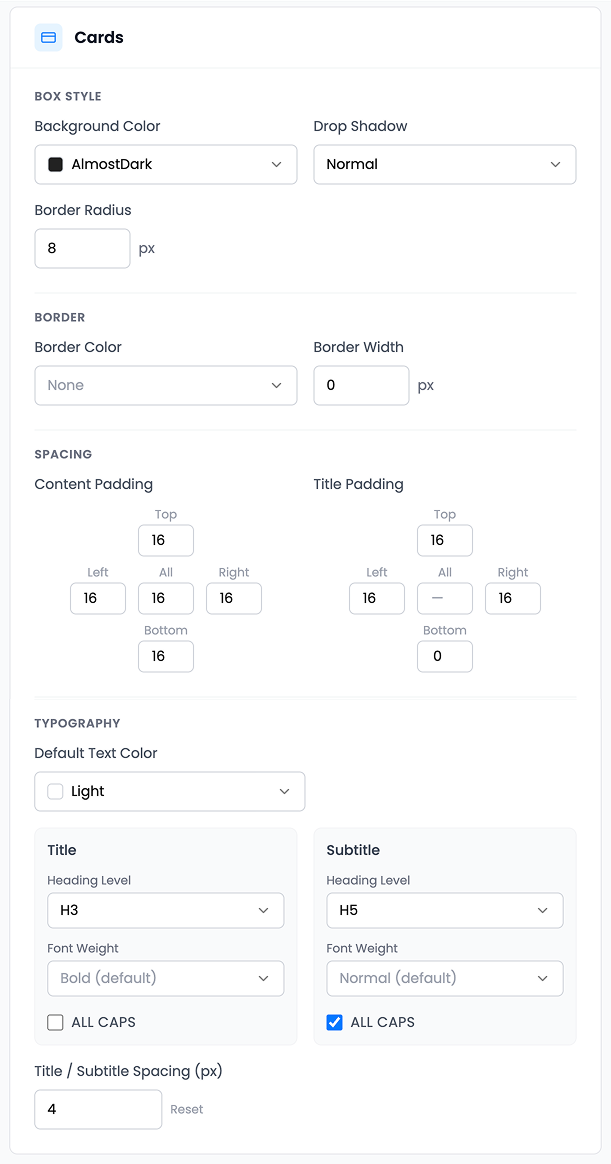
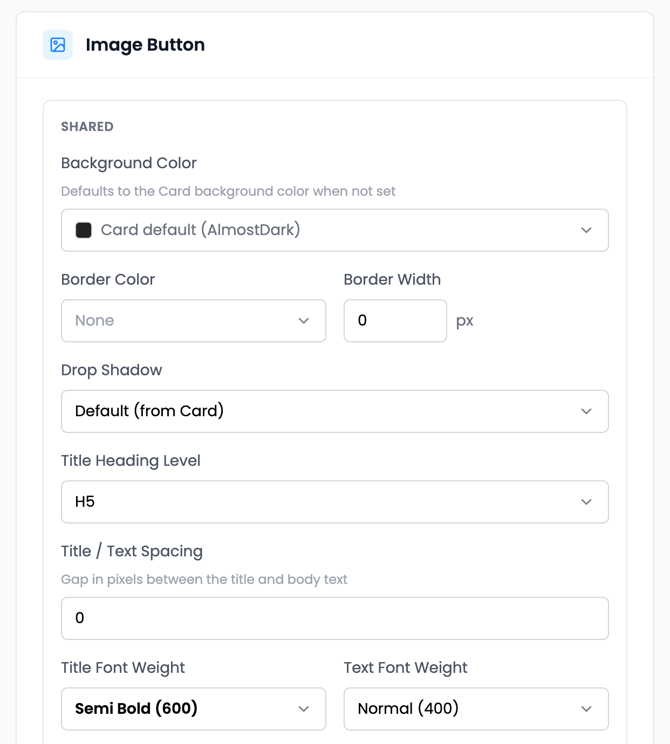
Image Button
Controls elements that combine images/icons with text.
- Background, border, and shadow settings
- Title and text styling (size, weight)
- Spacing between image and text
- Control image/icon size and shape
- Set icon color and background
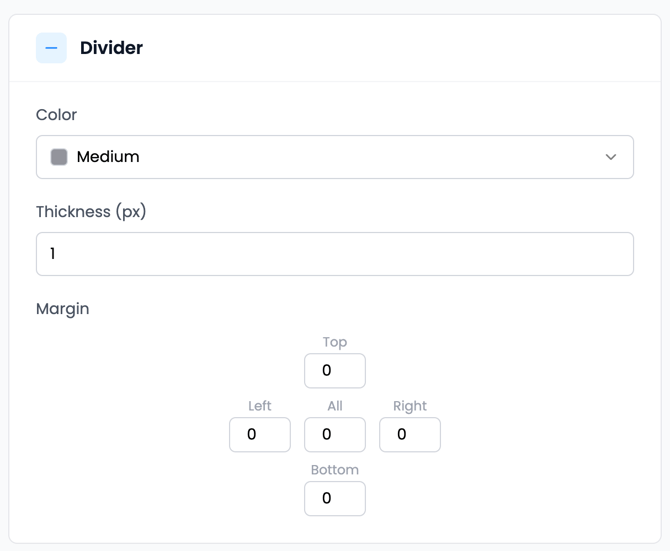
Divider
Controls horizontal line elements used to separate content.
- Color
- Thickness
- Spacing (margin) around the divider
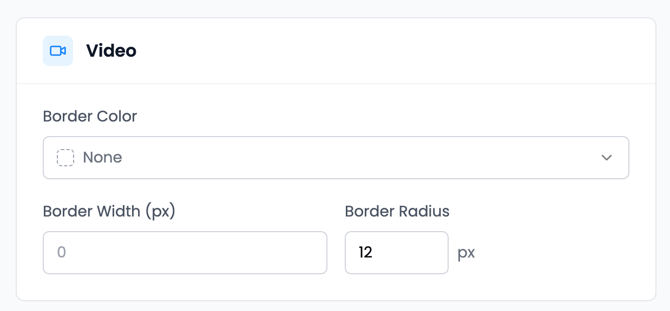
Video
Controls embedded video styling.
- Border color and width
- Border radius for rounded corners
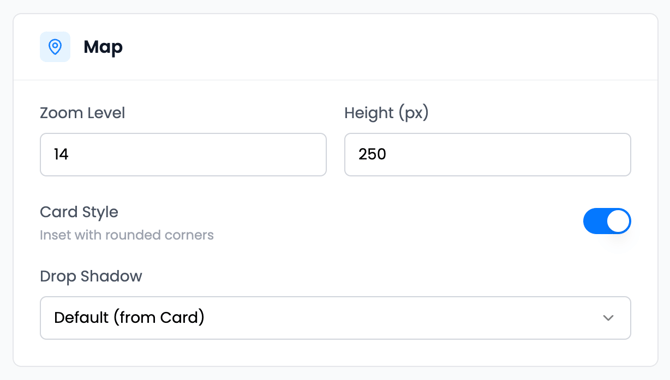
Map
Controls embedded map appearance.
- Zoom Level – How close the map appears
- Height – Vertical size of the map
- Card Style – Toggle inset styling with rounded corners
- Drop Shadow – Matches your card styling