
How to Schedule a Mass Message
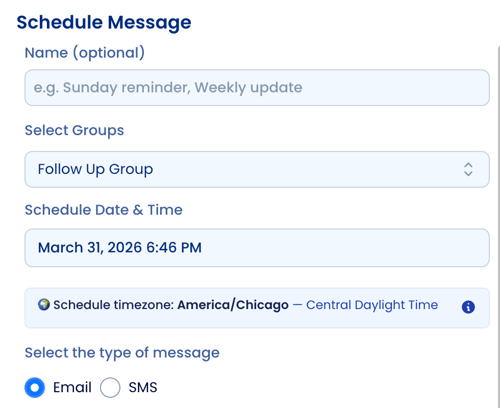
- Navigate to Dashboard > Groups > Schedule Message

- (Optional) Enter a name for your scheduled message.
- This is for internal use only
- Example: “Volunteer Saturday Reminder” - Select the Group(s) you want to receive the message.
- Choose your message type; either Email or SMS (Text Message).
Scheduling Time Guidelines
- SMS Messages: Due to texting regulations, messages can only be scheduled between 9:00 AM – 8:00 PM.
- Email Messages: Can be scheduled for any date and time.
- You can select your preferred date and time and adjust it as needed.
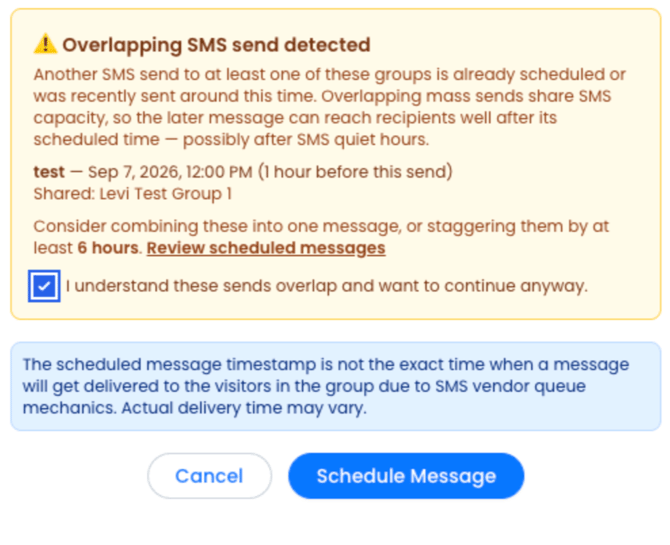
- A warning overlapping message will appear if two group texts are scheduled too close together (within a 6 hour time frame).
Composing Your Message
If sending an email:
- Enter a subject line
- Write the body of the email as you normally would
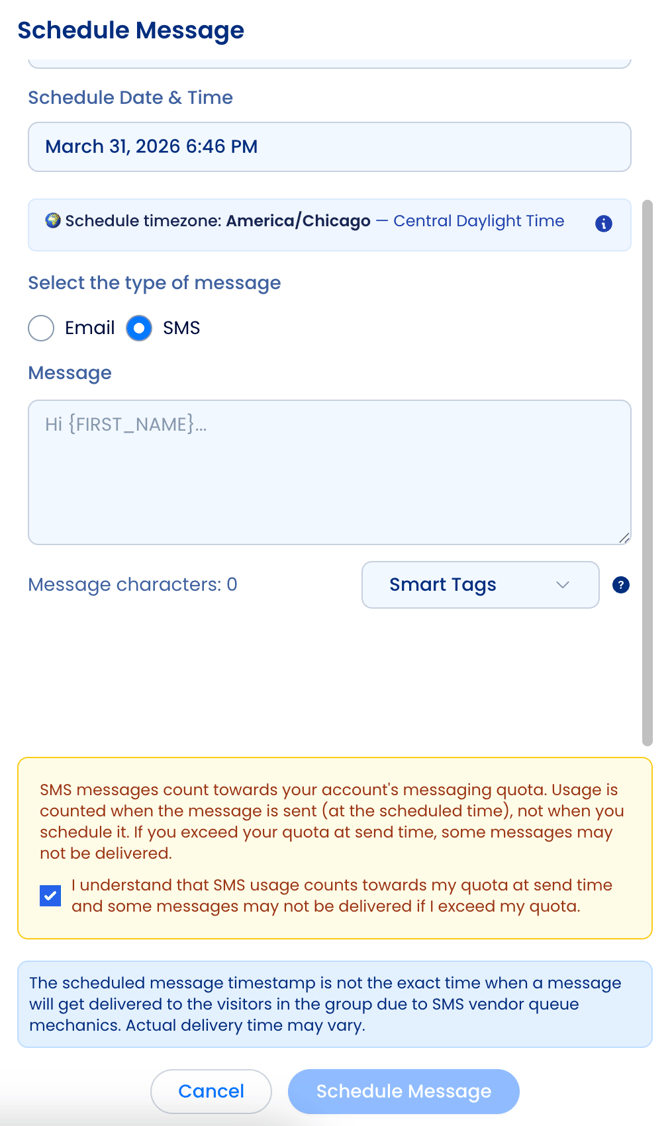
If sending an SMS:
- Type your text message
- Check the box to agree to SMS usage
Click Schedule Message to confirm once you have set up and reviewed your scheduled message.
View Scheduled
- Click View Scheduled to see all upcoming scheduled messages.
- From there, you can review or edit any scheduled message as needed.

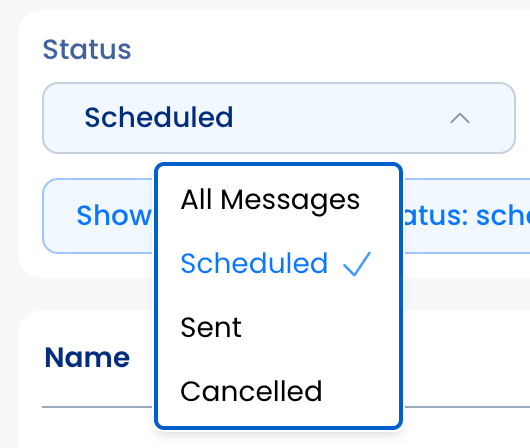
- Under Status, you are able to view all scheduled, sent, or cancelled messages.
- Under Message Type, you are able to filter email versus SMS messages.
- Filter by Group to view scheduled messages to specific Groups.
By planning ahead, the Scheduled Message feature allows you to ensure your audience receives timely updates, reminders, and important information, ultimately helping you stay engaged and efficient.
Helpful Articles
Blackout Dates: Prevent Scheduled Messages on Specific Dates